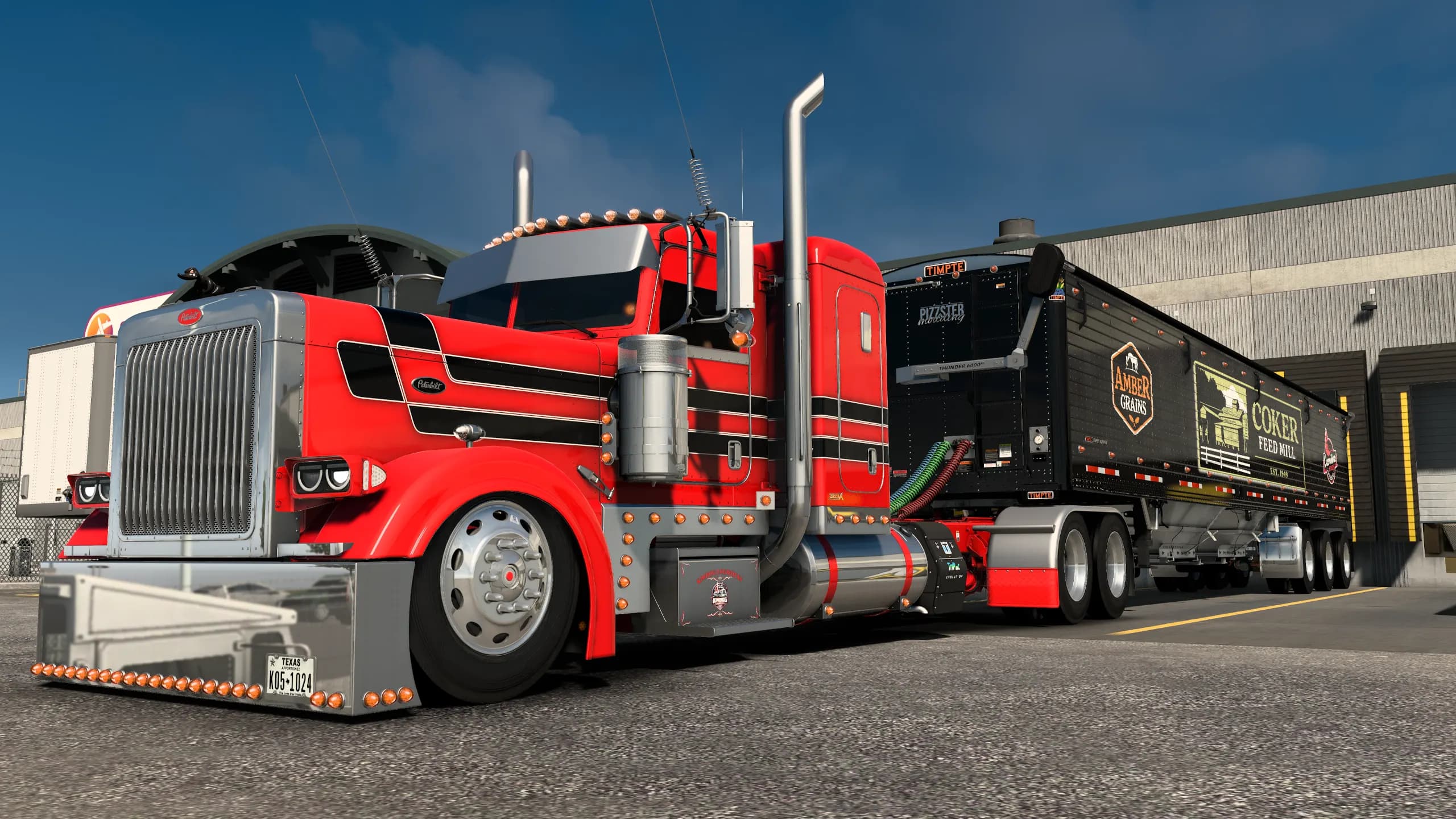
KimDog Studios Launcher
What the launcher does, how to install it, sign in, install and update your mods, and fix common problems.
 Edited by KimDog · 2 days ago
The KimDog Studios Launcher is a free desktop app that puts your KimDog mods straight into American Truck Simulator and Euro Truck Simulator 2 - and keeps them up to date for you. No zip files, no hunting for the mod folder.
Tip
Everything you own on kimdog-logistics.com shows up in the launcher automatically once you sign in.
What it does
- Installs your mods for you - every mod you own on the website, put into the right game's mod folder in one click.
- Keeps them up to date - when a mod gets a new version, the launcher sees it and updates it.
- Shows what's new - news and announcements from KimDog Studios, right on the home screen.
- Lets you browse the store - see KimDog mods you don't own yet and get them from the website.
- Drive for your VTC - if you're in a VTC on the website, the launcher can share your truck live on the VTC map while you drive (optional).
Download and install
- Go to the Launcher page on the website.
- Press Download for Windows (Linux builds are there too).
- Open the file you downloaded and follow the installer.
Note
Windows may show "Windows protected your PC" the first time, because the launcher is a new app. Click More info, then Run anyway.
Sign in
The launcher uses your normal KimDog Modding account - there's no separate password.
- Open the launcher and press Sign in.
- Your web browser opens on kimdog-logistics.com. Sign in there if you aren't already.
- Press Allow. The launcher signs in by itself - you can close the browser tab.
To sign the launcher out from somewhere else, open Profile on the website: every device that's signed in is listed there and can be signed out.
Install and update your mods
Your library shows every mod you own on the website.
- Pick a mod and press Install.
- The launcher downloads it and puts it in the correct game's mod folder.
- Start the game, open the Mod Manager and make sure the mod is switched on for your profile.
When an update comes out, the launcher updates the mod for you - you'll see the new version in your library.
Tip
On the website's Downloads page you can press Install with launcher on any mod: it opens the launcher and installs it straight away.
The VTC plugin (optional)
If you drive for a VTC on the website, the launcher can share your truck's position and job live on your VTC's map.
- The launcher asks first before installing its game plugin - it's never forced.
- If you say yes, it keeps the plugin up to date by itself, only while the games are closed.
- You can switch it off any time in the launcher's Settings.
Important
After the plugin is installed for the first time, restart the game so it loads.
Settings
In Settings you can change where each game's mods go, switch the VTC plugin on or off, and check that the launcher can reach KimDog's servers (handy if something isn't working).
Fixing common problems
My mod doesn't show up in the game
Open the game's Mod Manager and switch the mod on for your profile - games don't enable new mods by themselves. Also check the launcher's Settings point at the right game folder.
The launcher says I don't own a mod I bought
Make sure you're signed in to the same account you bought it with. Check your website Downloads page - if it's there, sign out of the launcher and back in.
Sign-in doesn't finish
Keep the launcher open while you press Allow in the browser. If it still doesn't sign in, close the launcher completely and try again.
My truck isn't showing on the VTC map
The VTC plugin needs to be switched on in Settings, the game restarted after it was installed, and you need to be a member of a VTC on the website.
Still stuck?
Open a request on the Support page or ask in the KimDog Discord - we're happy to help.
Was this helpful?